Detecting M365 Attacks Using Microsoft Purview & UAL Logs
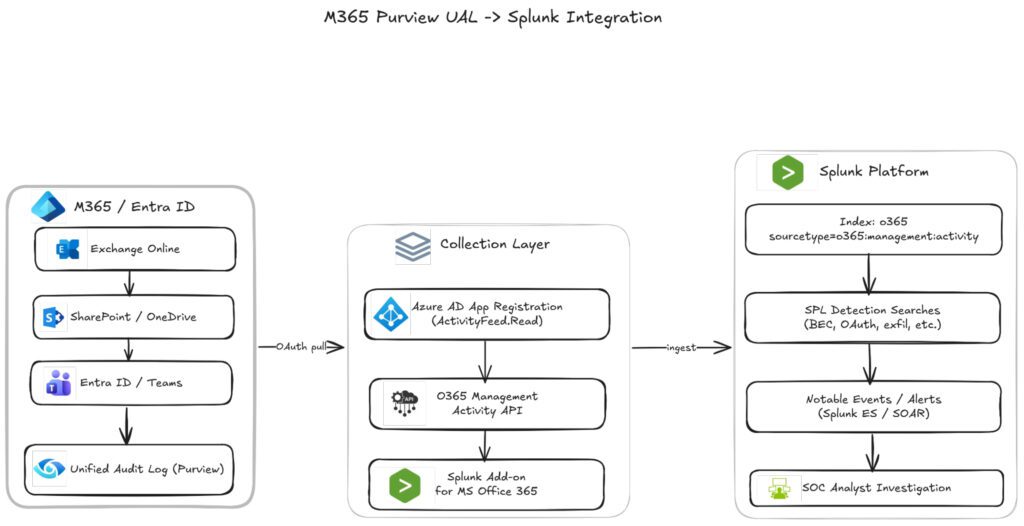
The diagram above illustrates the end-to-end pipeline for M365 attack detection: native M365 services (Exchange Online, SharePoint/OneDrive, Entra ID, Teams) generate audit events that flow into the Purview Unified Audit Log. An Azure AD app registration with ActivityFeed.Read and ActivityFeed.ReadDlp permissions enables the Office 365 Management Activity API to pull these events, which the Splunk Add-on for Microsoft Office 365 ingests into the o365 index under sourcetype o365:management:activity. From there, SPL detection searches parse AuditData via spath, correlate multi-stage attack chains (e.g., suspicious login → inbox rule creation → mass mailbox access), and generate risk-scored notable events for SOC triage and response. Note the latency callout – UAL data can take up to 24 hours to surface, and API polling intervals add further delay, so detection windows should be tuned accordingly.
1. Understanding the Unified Audit Log (UAL)
The UAL is the backbone of M365 detection. It aggregates events from:
- Exchange Online (Audit.Exchange) — mailbox rules, permission changes, mail flow
- SharePoint/OneDrive (Audit.SharePoint) — file access, sharing, downloads
- Entra ID (Audit.AzureActiveDirectory) — sign-ins, role changes, app consents
- Teams, Power Platform, Dynamics (Audit.General)
- DLP events (Audit.DLP / DLP.All)
Each record contains: CreationTime, Id, Operation, OrganizationId, RecordType, UserKey, UserType, ClientIP, UserId, and an AuditData JSON blob with operation-specific parameters.
2. Licensing Considerations
Feature | Standard (E3) | Premium (E5 or add-on) |
Retention | 180 days | 1 year |
MailItemsAccessed event | No | Yes |
Search-MailboxAuditLog (legacy mailbox audit) | Yes | Yes |
High-value events (Send, SendAs, SendOnBehalf coverage) | Partial | Full |
Crash dump/forensic-grade events (e.g., MailItemsAccessed, Search) | No | Yes |
If you’re investigating BEC, MailItemsAccessed (Premium only) is critical. It tells you exactly which emails an attacker read, not just that they logged in.
3. Detailed Setup Steps in Purview Portal
A. Verify and Enable Auditing
powershell
# Connect to Exchange Online PowerShell
Connect-ExchangeOnline
# Check org-wide audit status
Get-OrganizationConfig | Format-List AuditDisabled
# Enable if disabled
Set-OrganizationConfig -AuditDisabled $false
# Enable per-mailbox auditing (usually on by default since 2019)
Get-Mailbox -ResultSize Unlimited | Set-Mailbox -AuditEnabled $true
B. Confirm Audit Log Search is Active
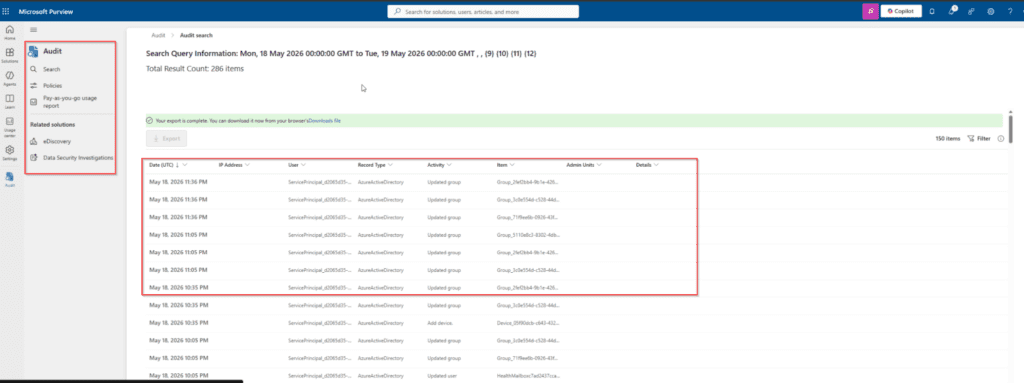
Purview portal → Audit → Search tab. If you see “It may take up to 60 minutes for new audit data to be searchable,” auditing is functional but has ingestion delay-critical to account for in detection timing.
C. Configure Retention Policies
Purview → Audit → Audit retention policies (E5 only). Create custom policies, e.g.:
- Retain MailItemsAccessed and Send operations for priority users (executives) for 2 years
- Apply to specific record types or specific users/groups
D. Set Up Alert Policies (Native Purview Alerts)
Purview → Audit (or Alert policies under Compliance) → New alert policy:
- Category: Threat management
- Conditions: e.g., “Activity is performed by a user outside your organization” combined with “Activity volume” thresholds
- These native alerts can complement SPL detections and trigger before SIEM ingestion delay
4. Setting Up the Office 365 Management Activity API Pipeline (Splunk)
A. Register Azure AD Application
- Entra ID → App registrations → New registration
- API permissions → Add:
- Office 365 Management APIs → ActivityFeed.Read, ActivityFeed.ReadDlp, ServiceHealth.Read
- Grant admin consent
- Generate a client secret; note Tenant ID, Client ID, Client Secret
B. Install Splunk Add-on
- Install Splunk Add-on for Microsoft Office 365 from Splunkbase
- Configure → Account: enter Tenant ID, Client ID, Client Secret
- Configure → Inputs: create inputs for each content type:
- Audit.AzureActiveDirectory
- Audit.Exchange
- Audit.SharePoint
- Audit.General
- DLP.All
- Set interval (e.g., 300 seconds) and index destination (e.g., o365)
C. Validate Ingestion
Spl
index=o365 sourcetype=“o365:management:activity”
| stats count by RecordType, Operation
| sort -count
Confirm you’re seeing expected operations like UserLoggedIn, FileAccessed, New-InboxRule.
5. Expanded Detection Use Cases with SPL
A. Business Email Compromise (BEC) Chain Detection
Stage 1 – Initial Access: Suspicious sign-in
spl
index=o365 sourcetype=“o365:management:activity” Operation=“UserLoggedIn”
ResultStatus=Success
| iplocation ClientIP
| eval risk=if(match(City,“unfamiliar_pattern”),“high”,“normal”)
| table _time, UserId, ClientIP, Country, City, UserAgent
Stage 2 — Persistence: New inbox rule with suspicious keywords
spl
index=o365 sourcetype=“o365:management:activity” |
Stage 3 — Action on Objective: Mass email access (Premium only)
spl
index=o365 sourcetype=“o365:management:activity” Operation=“MailItemsAccessed”
| spath input=AuditData path=Folders{}.FolderItems{}.Id
| stats dc(Folders{}.FolderItems{}.Id) as items_accessed by UserId, _time
| where items_accessed > 50
Correlation across stages (sessionize by user within 1-hour window)
spl
index=o365 sourcetype=“o365:management:activity” |
B. OAuth Consent Phishing (Illicit Consent Grant)
spl
index=o365 sourcetype=“o365:management:activity”
Operation IN (“Consent to application.”,“Add app role assignment to service principal.”)
| spath input=AuditData
| eval app_name=mvindex(‘Target{}.ID’, 1), permissions=’ModifiedProperties{}.NewValue’
| where match(permissions, “(?i)(Mail.Read|Mail.ReadWrite|Files.ReadWrite.All|full_access_as_app|Directory.ReadWrite.All)”)
| table _time, UserId, app_name, permissions, ClientIP
Follow-up: check app age and publisher reputation manually for any app flagged here—newly registered apps requesting broad Mail/Files scopes are classic AiTM/consent-phishing indicators.
C. Password Spray Detection
spl
index=o365 sourcetype=“o365:management:activity” Operation=“UserLoginFailed”
| bucket _time span=10m
| stats dc(UserId) as unique_users, count as attempts by _time, ClientIP
| where unique_users > 10 AND attempts > 20
D. Impossible Travel (Refined)
spl
index=o365 sourcetype=“o365:management:activity” Operation=“UserLoggedIn” ResultStatus=Success
| iplocation ClientIP
| eval lat_lon=lat.“,”.lon
| sort UserId, _time
| streamstats current=f window=1 last(lat) as prev_lat, last(lon) as prev_lon, last(_time) as prev_time by UserId
| eval distance_km=round(haversine(lat,lon,prev_lat,prev_lon),0)
| eval time_diff_hr=round((_time-prev_time)/3600,2)
| eval speed_kmh=if(time_diff_hr>0, round(distance_km/time_diff_hr,0), 0)
| where speed_kmh > 900
| table _time, UserId, ClientIP, Country, distance_km, time_diff_hr, speed_kmh
(Note: haversine requires a custom SPL function or lookup-based distance calc—alternatively use the Splunk MLTK or a geo lookup table.)
6. Investigation Workflow After Alert Fires
- Pivot in Purview: Search UAL for the flagged UserId across a wider time window (±24h) to build a full activity timeline.
- Check sign-in logs in Entra ID: Look at RiskState, RiskLevel, and ConditionalAccessStatus for the same session.
- Review Defender for Office 365 (if licensed): Check Threat Explorer for phishing emails delivered to the user around the same time.
- Containment: Disable user, revoke refresh tokens (Revoke-AzureADUserAllRefreshToken), remove malicious inbox rules, and remove unauthorized OAuth grants via Entra ID → Enterprise Applications.
7. Common Pitfalls
- Ingestion lag: UAL data can take up to 24 hours to appear in some cases; tune SPL search windows accordingly (don’t run real-time searches expecting sub-minute latency).
- Throttling: The Management Activity API has rate limits—high-volume tenants may need multiple subscriptions or content-type splitting.
- AuditData parsing: Most fields live inside the nested AuditData JSON; always use spath to extract before filtering.
- Noise from service accounts: Baseline normal automation/service account behavior separately to avoid false positives in role-change and mass-download detections.
Conclusion
A mature M365 detection program pairs Purview’s native audit collection and retention with Splunk’s correlation engine. Map detections to attack stages (initial access → persistence → collection → exfiltration → privilege escalation) rather than treating each SPL query in isolation-this lets analysts trace full attack chains and respond faster.